
Shopify Custom App Setup: Step-by-Step Guide to Connect a Crypto Gateway in 2026
 Ricky
Ricky

If you searched the Shopify App Store for a crypto payment gateway and came up empty, you didn’t miss anything. Most crypto gateways serving Shopify in 2026, Aurpay included, connect through the Custom App route in Shopify Admin instead of as a public App Store listing. This guide walks the full path: enable Develop apps, scope the Admin API, hand the access token to Aurpay, register the manual payment method, run a test order, go live.
Block out about 45 minutes. You’ll need owner-level access to Shopify Admin and a non-custodial wallet ready to receive funds.
Why crypto gateways aren’t on the Shopify public App Store
This is the first question every merchant asks. You open the Shopify App Store, type “Bitcoin” or “USDT,” and see a thin set of half-maintained listings, none of which match the gateways you’ve read about. The reason is structural, not accidental.
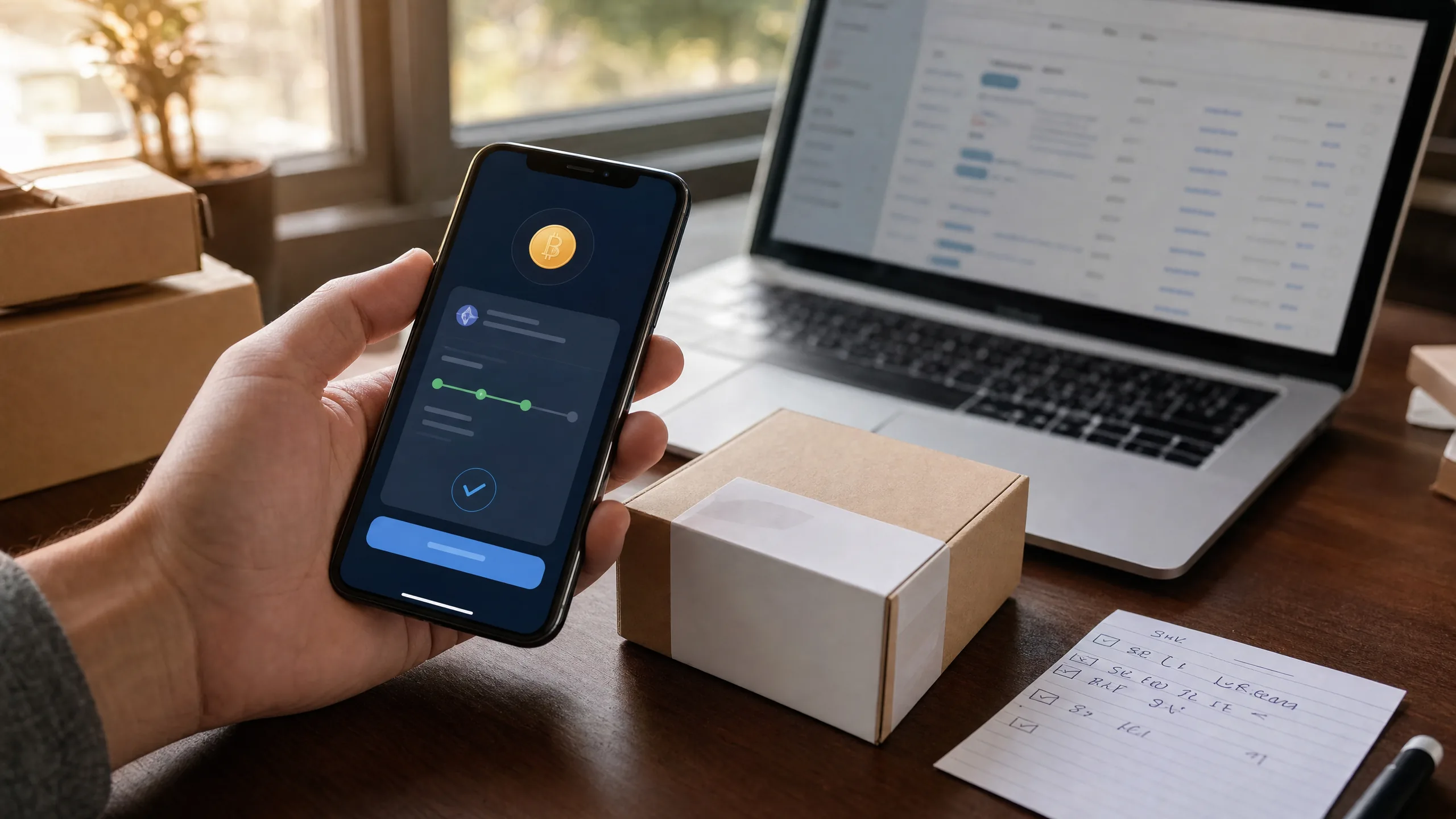
Shopify’s public App Store has its own review pipeline, partner program rules, and listing requirements that haven’t historically lined up with how a non-custodial crypto gateway operates. Public payment apps sit inside Shopify’s Payments Partner Program, which carries eligibility criteria, regional restrictions, and certification requirements that most crypto gateway providers route around rather than through. The Custom App route, formerly called Private Apps, exists for exactly this case: a verified gateway that needs to read orders and post checkout instructions, scoped to your store, controlled by you, no public listing involved.
The checkout experience is the same Shopify-native flow. Aurpay connects to your Shopify Admin as a Custom App you create yourself, with the API scopes you grant and credentials that live in your Admin. Aurpay never appears as a public App Store install. If a “Shopify App Store” listing claims to be Aurpay, it is not us. Filtering on this point is the first cut in the 2026 Shopify gateway comparison.
What “Custom App” means in Shopify
A Custom App is an integration created and installed by a single Shopify Admin, scoped to that one store, not published. Shopify exposes it at Settings → Apps and sales channels → Develop apps. Same surface developers use to build internal tooling for their own stores.
Three things differ from a public App Store install:
- Visibility: nobody else can install your Custom App. It belongs to your store only.
- Permissions: you pick the exact Admin API scopes. Nothing is granted by default.
- Credentials: you generate the Admin API access token and hand it to the gateway. Revoke it any time by uninstalling the Custom App.
Anyone with the Develop apps permission can create one. By default that’s the store owner, plus any staff member explicitly granted the permission. The security model is straightforward: a Custom App can do exactly what its scopes permit, nothing more. Uninstalling severs access immediately.
Pre-requisites before you start
Line these up before you open Shopify Admin:
- Shopify plan: any current plan supports Custom Apps. Basic, Shopify, Advanced, and Shopify Plus all work identically here.
- Admin access: store owner, or a staff member whose role has
Develop appsenabled. Not sure? Log in and look forSettings → Apps and sales channels → Develop apps. If it’s visible, you have the permission. - Two-factor authentication: enabled on the Shopify account that creates the app. Shopify requires this for Develop apps in 2026.
- An Aurpay merchant account: signed up at aurpay.net with your business email verified.
- A non-custodial wallet ready to receive payouts. Common picks: Trust Wallet (mobile-first, BTC, ETH, USDT, USDC, BNB), MetaMask (browser/mobile, ERC-20 ecosystem), OKX Wallet (multi-chain, strong USDT TRC-20 support), or Trezor (hardware, cold storage for larger balances). Have one wallet address ready per asset and chain you plan to accept.
Step 1: Enable Custom App development
In Shopify Admin, go to Settings → Apps and sales channels → Develop apps. The first time you land on this page Shopify shows a confirmation dialog: “Allow custom app development.” Read the warning. Shopify is reminding you that custom apps installed here can access store data per the scopes you grant.
- Click
Allow custom app development. - Confirm in the modal.
You’re now in the Develop apps workspace. One-time toggle. You won’t see this warning again on this store.
Step 2: Create the Aurpay Custom App
Still inside Develop apps, click Create an app. Shopify will ask for a name and an app developer.
- App name:
Aurpay Crypto Gateway. - App developer: select your own Shopify account.
- Click
Create app.
You’re now on the new app’s overview page. Open the Configuration tab and click Configure next to Admin API integration. Grant exactly these scopes, no more, no less:
read_ordersso Aurpay can read the order details that picked crypto checkout.write_ordersso Aurpay can mark the matching order as paid via the Shopify Admin API once on-chain settlement confirms.read_customersso paid orders associate with the correct customer record.
Save the scope configuration. Switch to the API credentials tab and click Install app. Shopify will generate the Admin API access token. This token is shown once. Copy it now into a password manager. You’ll paste it into Aurpay in a minute, but if you lose it before then you’ll have to rotate the token through Shopify.
Step 3: Hand the credentials to Aurpay
In your Aurpay merchant dashboard, open the Shopify integration page and paste:
- Your Shopify store domain (e.g.
your-brand.myshopify.com). - The Admin API access token from Step 2.
Aurpay uses the token server-side for two things: reading the matching order when a buyer arrives at the hosted crypto checkout, and calling Shopify’s Admin API to mark the order paid once the on-chain transaction is confirmed by Aurpay’s callback. There is no need to subscribe Shopify webhooks back to Aurpay — the order state machine flows in one direction (Aurpay → Shopify) via the Admin API.
Step 4: Activate as a Manual Payment Method
Aurpay surfaces at checkout as a Manual Payment Method that takes the buyer to a hosted crypto checkout page. To register it:
- Go to
Settings → Payments. - Scroll to Manual payment methods and click
Add manual payment method → Create custom payment method. - Name:
Pay with crypto (BTC, USDT, USDC). - Additional details: paste the on-checkout copy Aurpay gives you. Usually a short instruction telling the buyer the next page will offer BTC, Bitcoin Lightning, ETH, USDT (ERC-20 / TRC-20), USDC (ERC-20 / TRC-20), DAI, and BNB.
- Payment instructions: paste the Aurpay-supplied checkout link or shortcode block.
- Save and activate.
The payment option now shows up on your checkout page beneath your card and wallet methods. Because it is a manual payment method, the buyer is routed to the Aurpay-hosted checkout to pick their currency and pay. Aurpay then marks the matching Shopify order paid via the Admin API on chain confirmation. If you’re switching from Coinbase Commerce, deactivate the old payment method only after the Aurpay test order in Step 5 succeeds.
Step 5: Run a test order with USDT or BTC
Always run a real test order before opening crypto checkout to customers. Set up a $5 test product (unlisted) so the test doesn’t interfere with live inventory.
- Place an order through the storefront and pick your new
Pay with cryptomethod. - On the Aurpay checkout page, choose USDT (TRC-20) for the lowest-gas test, or BTC Lightning if you want to validate the LN flow. Send the exact amount from your test wallet.
- In Shopify, watch the order status. It should flip from Pending to Paid once Aurpay’s callback fires and Aurpay calls back into Shopify’s Admin API.
- In your wallet, confirm funds landed at the receiving address.
- In Aurpay’s dashboard, confirm the order shows
succeedand is linked to the Shopify order number.
If all four checks pass, you have a working setup. If any one fails, treat it as a blocker. Don’t go live until each step is green.
Step 6: Go live and set up monitoring
Once your test order clears, open crypto checkout to all customers:
- Re-list your test product as a real SKU, or delete it.
- Confirm the manual payment method is enabled for all customer segments under
Settings → Payments. - Set up a monitoring channel: at minimum, route Aurpay callback failures and Shopify order-status anomalies (orders that finalize in Aurpay but don’t flip to Paid in Shopify) to a Slack channel or shared email inbox someone checks daily.
- Watch the first 24-48 hours of orders closely. Reconcile each crypto order against the wallet balance and the Aurpay dashboard.
This is the same playbook used in the luxury retail use case for this setup, where six-figure orders demand the same operational discipline.
Common troubleshooting
Order isn’t flipping to “Paid” after on-chain confirmation
If the Aurpay dashboard shows the order as succeed but Shopify still says “Pending,” the most common cause is the Admin API access token. Regenerate the token through Develop apps → API credentials and re-paste it into Aurpay’s Shopify integration page. A 401 or 403 from Shopify when Aurpay tries to mark the order paid points at the token, not at the buyer’s wallet. Transient 5xx from Shopify’s Admin API is rare but does happen; Aurpay’s own retry will recover it within a few minutes.
Payment method missing at checkout
Check that the manual payment method is active, not just saved. Also check shipping eligibility: if the customer’s country is excluded from your shipping zones, every payment method can disappear. Test with an in-zone address.
“Insufficient scope” error in the Aurpay dashboard
You missed one of the four scopes in Step 2. Reopen the Custom App, edit Admin API integration, add the missing scope, and reinstall. Re-paste the new access token into Aurpay.
Wallet address mismatch or funds not received
Verify the address in Aurpay matches the address on your wallet, character for character. Confirm the chain matches too: a USDT TRC-20 payment sent to an ERC-20 address is unrecoverable. Always start with a small ($5) live amount before opening crypto checkout to real customers.
Test order stuck in Pending
Wait one full block confirmation cycle (10-60 minutes for BTC, 1-5 minutes for ETH, under a minute for TRC-20) before troubleshooting. If still pending after that, check the Aurpay dashboard for the on-chain transaction status. The gateway won’t mark Shopify paid until threshold confirmations are reached.
Cost and fee summary
Aurpay charges 0.8% per transaction with no monthly fees, no setup fees, and no contracts or banking details required. Funds settle non-custodially: they land in your wallet directly, never in an Aurpay-controlled account. Same fee schedule across Custom App integrations, Hosted Checkout, Crypto Invoice, and the REST API. For a side-by-side cost view against other providers, see the 2026 gateway comparison.
Ready to run the setup?
Connect Aurpay to your Shopify store as a Custom App and start accepting BTC, USDT, USDC, ETH and more at 0.8% per transaction.
Non-custodial settlement, direct-to-wallet payouts, no contracts and no banking details required. The Custom App route through Settings → Apps and sales channels → Develop apps takes about 45 minutes end to end and is reversible any time by uninstalling the app.
If you want a structural read before you build, the 2026 Shopify gateway comparison is the recommended companion piece. The Custom App route is the same across most serious crypto gateways. The differences live in custody, fees, and asset coverage, which is where the comparison earns its keep.