
Accept Stablecoins on WooCommerce: Plugin Setup Guide
 Ricky
Ricky
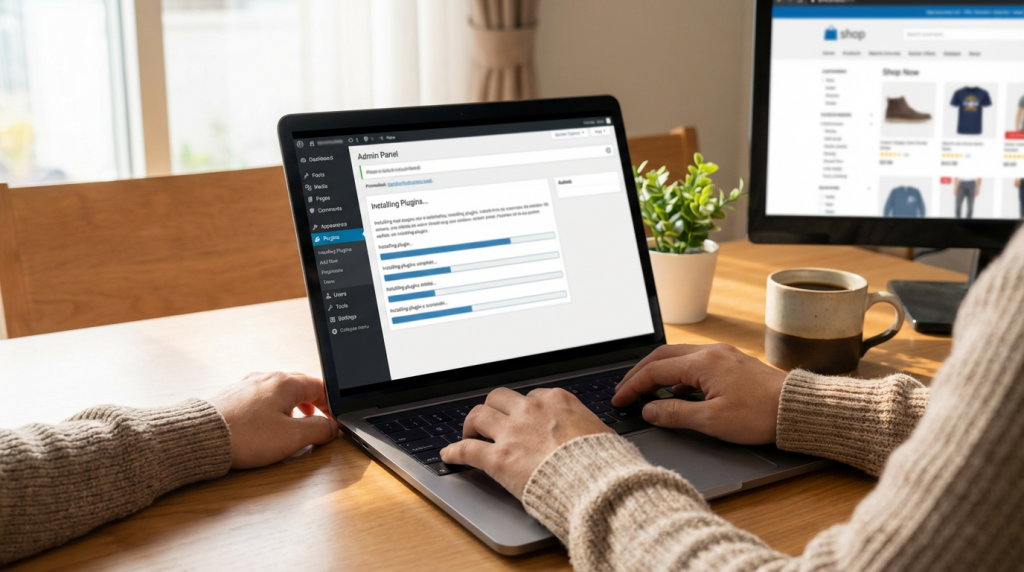
WooCommerce gives you full control over your online store. Your payment options should match that philosophy. Adding stablecoin payments — USDT, USDC, and other major tokens — takes less time than configuring most shipping plugins. With a non-custodial gateway like Aurpay, every payment routes directly to your wallet. No intermediary holds your funds, no KYC paperwork slows you down, and no third party can freeze your balance.
This guide walks you through the entire process: installing the plugin from WordPress.org, connecting your wallet, running a test transaction, and going live. If you can install a WordPress plugin, you can accept stablecoins. The whole setup takes about 15 minutes.
Why stablecoins make sense for WooCommerce merchants
Credit card processors charge 2.9% plus a per-transaction fee on every sale. For a store doing $10,000 per month, that is $290 lost to payment processing before you account for chargebacks, currency conversion, or gateway fees. Stablecoin payments eliminate most of these costs. Transaction fees on networks like Tron (TRC-20) run under $1 regardless of payment size, and there are no chargebacks because blockchain transactions are final.
Stablecoins also solve the volatility problem that keeps many merchants away from crypto. Unlike Bitcoin or Ethereum, stablecoins like USDT and USDC are pegged to the US dollar. When a customer pays you 100 USDT, you receive 100 USDT — not a fluctuating amount that could be worth 92 dollars by the time you convert it. For a deeper comparison of how stablecoin fees stack up against traditional processors, see our merchant fee breakdown.
Cross-border transactions are where the savings become dramatic. Wire transfers and international credit card payments carry FX conversion fees, intermediary bank charges, and settlement delays of 2-5 business days. A stablecoin payment from a customer in Singapore to a merchant in Germany settles in seconds, at the same sub-dollar fee, with no currency conversion required.
What you need before starting
Gather the following before you begin. The setup process is smooth when everything is ready upfront.
- WordPress 6.0 or higher with WooCommerce 7.0+ installed and activated
- At least one published product in your WooCommerce store (needed for test transactions)
- A crypto wallet address for receiving payments — this can be any self-custody wallet that supports the networks you want to accept (Ethereum, Tron, BSC, Polygon, etc.)
- Admin access to your WordPress dashboard
- SSL certificate active on your site (required for any payment processing; most hosts include this free)
You do not need a merchant account, KYC documents, or any coding knowledge. If you already have a preferred wallet like MetaMask, Trust Wallet, or a hardware wallet like Ledger, you can use the address from any of these.
Step-by-step: install and configure the Aurpay plugin
Step 1 — Install the plugin
Log in to your WordPress admin dashboard. Navigate to Plugins → Add New and search for “Aurpay” in the search bar. The plugin appears as Aurpay — Crypto Payment Gateway for WooCommerce. Click Install Now, then Activate.
Alternatively, you can download the plugin directly from the Aurpay WooCommerce plugin page or the WordPress.org plugin directory and upload it via Plugins → Add New → Upload Plugin.
Step 2 — Create your Aurpay merchant account
After activation, the plugin adds an Aurpay settings page. You will need a free Aurpay merchant account to generate your API credentials. Go to aurpay.net, sign up with your email, and create a new store project. The dashboard gives you two things you need: your Merchant ID and your API Key.
Copy both values. You will paste them into the plugin settings in the next step.
Step 3 — Configure payment settings
In your WordPress dashboard, go to WooCommerce → Settings → Payments. You will see “Aurpay — Cryptocurrency Payment” listed among your payment methods. Click Manage to open the configuration panel.
Fill in the following fields:
- Enable/Disable — Toggle to “Enable”
- Title — The label your customers see at checkout. “Pay with Crypto” or “Pay with USDT/USDC” works well.
- Description — A short line customers see below the payment option. Something like “Pay with USDT, USDC, BTC, or ETH. Powered by Aurpay.”
- Merchant ID — Paste from your Aurpay dashboard
- API Key — Paste from your Aurpay dashboard
Step 4 — Connect your wallet
In the Aurpay merchant dashboard (not WordPress), navigate to Settings → Wallet. Add the wallet addresses where you want to receive payments. You can set different addresses for different networks — for example, one address for Ethereum and ERC-20 tokens, another for Tron TRC-20 tokens.
This is where the non-custodial model matters. Aurpay never holds your crypto. When a customer pays, the funds go directly to the wallet address you configure here. You maintain full custody at all times.
If you are unsure which networks to enable, start with Tron (TRC-20) for USDT — it has the lowest transaction fees — and Ethereum (ERC-20) for broader token support. Our guide on choosing between USDT and USDC can help you decide which stablecoins to prioritize.
Step 5 — Select accepted cryptocurrencies
Still in the Aurpay dashboard, go to the cryptocurrency selection panel. Enable the tokens you want to accept. Most WooCommerce merchants start with:
- USDT (Tether) — the most widely held stablecoin, available on Ethereum, Tron, BSC, and Polygon
- USDC (USD Coin) — regulated and backed by Coinbase/Circle, popular with US and European customers
- BTC — still the most recognized cryptocurrency; some customers prefer it
- ETH — useful for customers already in the Ethereum ecosystem
You can add or remove tokens at any time without reinstalling the plugin or changing your WordPress configuration.
Step 6 — Run a test transaction
Before going live, place a test order on your own store. Add a product to your cart, proceed to checkout, and select the crypto payment option. The checkout page will display a QR code and a wallet address for the selected cryptocurrency.
Send a small amount (even $1 worth of USDT on Tron costs under $1 in fees) to confirm the full flow:
- Payment page displays correctly with QR code and amount
- After sending, the transaction is detected within 1-2 minutes
- WooCommerce order status updates to “Processing” or “Completed” automatically
- Funds arrive in your wallet
- Customer receives an order confirmation email
If all five checkpoints pass, your integration is working. If anything fails, check the troubleshooting section below.
Step 7 — Go live
Once your test transaction confirms successfully, your store is ready. No additional configuration is needed. The crypto payment option will appear alongside your existing payment methods (credit card, PayPal, etc.) at checkout. Customers choose their preferred cryptocurrency, scan the QR code or copy the address, and send payment from their wallet.
WooCommerce handles the rest — order status updates, confirmation emails, and inventory management all work the same way they do with traditional payment methods.
What your customers see at checkout
The checkout experience is straightforward. When a customer selects “Pay with Crypto” (or whatever title you configured), they see a payment page with the order total converted to their chosen cryptocurrency at the current exchange rate. A QR code and a copy-paste wallet address are displayed. The page includes a countdown timer — typically 15-20 minutes — within which the customer needs to complete the payment.
Once the blockchain confirms the transaction, the order status updates automatically. Your customer sees a confirmation page, and WooCommerce sends the standard order confirmation email. From the customer’s perspective, the experience is comparable to scanning a QR code for a bank transfer — familiar and fast.
Fees and settlement
Aurpay’s fee structure is transparent. There is no monthly subscription for the basic plan. Transaction fees vary by plan tier, but they are consistently lower than credit card processing rates. The standard rate is 0.8% per transaction. Blockchain network fees (gas fees) are paid by the customer as part of their transaction, not deducted from your received amount.
Settlement is instant. Because payments go directly to your wallet, there is no “settlement period” like the 2-3 business days you wait with Stripe or PayPal. The moment the blockchain confirms the transaction, the funds are yours. This matters most for merchants with tight cash flow or those selling high-value items where waiting days for settlement creates risk.
For a detailed cost comparison between stablecoin payments and traditional processors, see our analysis of stablecoin vs. credit card fees for merchants.
Troubleshooting common issues
Plugin does not appear in WooCommerce payment settings
Confirm that WooCommerce is installed and activated. The Aurpay plugin requires WooCommerce to register as a payment gateway. If WooCommerce is active but Aurpay still does not appear, deactivate and reactivate the Aurpay plugin. Check that your WordPress version meets the minimum requirement (6.0+).
Payment page shows but order status does not update
This usually indicates a webhook communication issue. Verify that your site’s SSL certificate is valid — Aurpay’s servers need to send a callback to your store when payment is confirmed, and this requires HTTPS. Also check that your hosting provider is not blocking incoming webhook requests with a firewall or WAF rule.
QR code or payment address not displaying
Check your API Key and Merchant ID in the plugin settings. A mismatch or typo in either field will prevent the payment page from generating. Also verify that you have at least one cryptocurrency enabled in your Aurpay dashboard and that a wallet address is configured for the corresponding network.
Customer paid but funds not received
First, check the transaction hash on a block explorer (Etherscan for Ethereum, Tronscan for Tron, BscScan for BSC). Confirm the payment was sent to the correct address and on the correct network. The most common issue is a customer sending ERC-20 USDT to a TRC-20 address or vice versa. If the transaction shows confirmed on the blockchain but your WooCommerce order has not updated, the webhook may have failed — contact Aurpay support with the transaction hash for resolution.
Conflict with other plugins
If you experience issues after installation, deactivate other payment gateway plugins temporarily to check for conflicts. Caching plugins can also interfere with the payment page — add your checkout URL to your cache plugin’s exclusion list. If you use a security plugin like Wordfence or Sucuri, whitelist Aurpay’s webhook endpoints.
Optimizing your crypto checkout for conversions
Adding the payment method is step one. Getting customers to use it is step two. Here are adjustments that improve crypto payment adoption rates among your customers.
Name the payment option clearly. “Pay with Crypto” is fine for tech-savvy audiences. For general ecommerce, “Pay with USDT/USDC (Stablecoin)” tells customers exactly what to expect and reduces hesitation from buyers unfamiliar with volatile cryptocurrencies.
Add a note about savings. If you pass along any fee savings to crypto-paying customers (even a 1-2% discount), mention it in the payment method description. Price-sensitive buyers will notice.
Keep traditional options available. Crypto should be an additional payment method, not a replacement. Customers who see both credit card and crypto options feel more comfortable with the store overall. The presence of familiar payment methods builds trust that extends to the crypto option.
Display supported tokens visually. Small token icons (USDT, USDC, BTC, ETH) next to the payment option at checkout increase click-through rates. Most crypto-native customers recognize these icons faster than they read text descriptions.
Beyond the basics: scaling your crypto payment setup
Once the plugin is running, you can extend your setup in several directions. If you sell internationally and want to understand how stablecoins handle cross-border settlement without intermediary banks, our guide on accepting USDT on Shopify covers multi-chain strategies that apply to WooCommerce as well.
For developers who want deeper integration — custom checkout flows, programmatic order management, or automated webhook handling — see our WooCommerce crypto tutorial using Claude Code. That guide covers the technical implementation that this article intentionally skips.
If you run both Shopify and WooCommerce stores, Aurpay’s dashboard lets you manage multiple stores under one merchant account, with unified reporting across platforms. Your wallet configuration carries over — you set it once and it works for all connected stores.
Start accepting stablecoins today
Aurpay connects your Shopify or WooCommerce store to USDT, USDC, and 10+ cryptocurrencies — with zero custody risk. Payments go directly to your wallet. Set up your store in under 15 minutes.